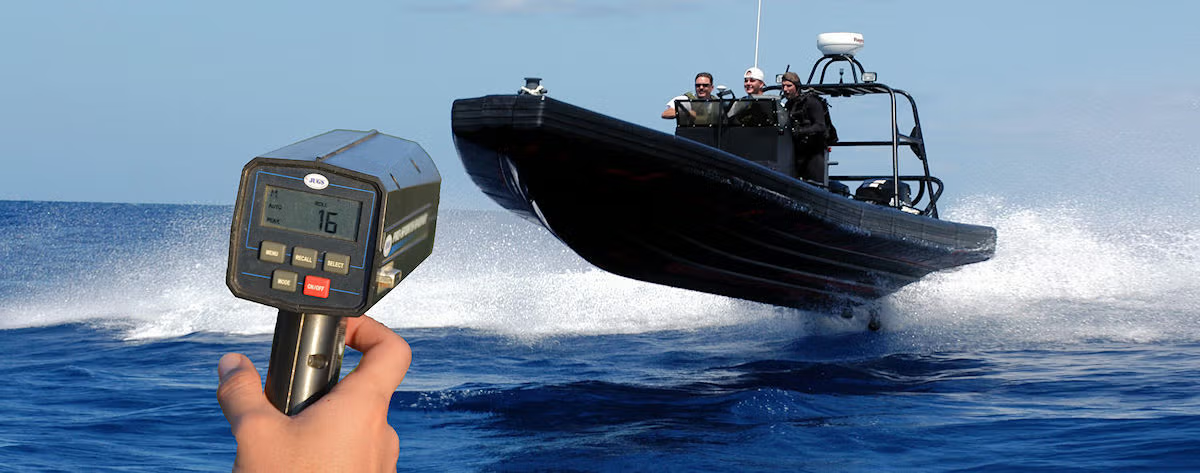
Reporting on Over Speed
The most common report all our MTS / Boat Track customers are interested in is reporting speed. This is not always the boss of a haulage company wondering why a driver with an urgent delivery is only doing 40mph on a motorway, or a charter hire company wondering why their RIB is doing 40 knots through Poole Harbour, it is sometimes because an insurance company has put a restriction on equipment use. We well attempt here to give you some suggestions on the best way to use reports for speed, it does not matter if your GPS tracker is being used in a Car, Truck, RIB, or other Vessel, the principle is the same.
However, just before we do that please remember that the information that any reports are based on comes from a mobile source using radio and internet pathways, sometimes under difficult conditions! Therefore the user must accept that although they are a very good guide to what has happened there can be slight inaccuracies and this must be factored in before making any decisions.
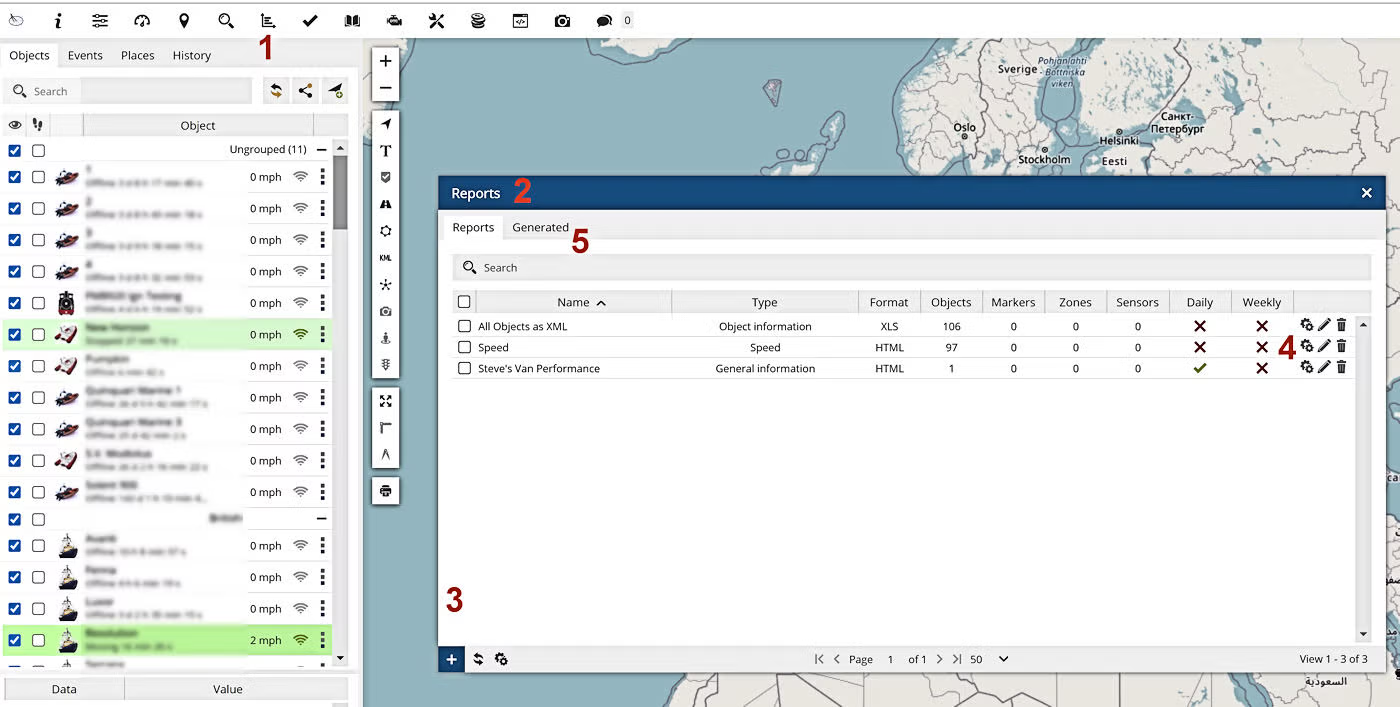
Later we will look at detecting speed events as they happen but let us start by making a simple Speed Graph for running after the event. This is achieved by going to reports (top of map screen on a PC looking like a spreadsheet, or graph with two arrows) shown as a red number 1 below, the report screen (red 2 below) will be open. Now click on the plus sign at Red 3 to create a blank report.
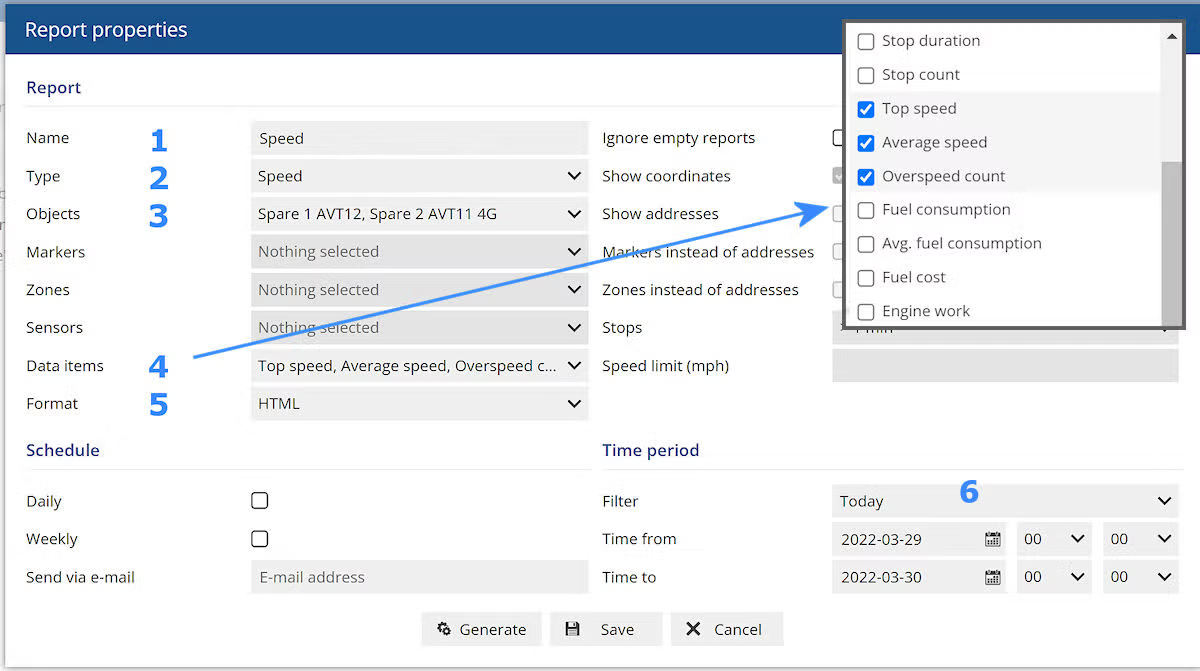
We now need to fill out the page s first of give the report a name (as in blue 1 below), then using the drop-down arrow select the type of report in this case select 'Speed' which is in the 'graphical reports' sub section. Next select an object or even more that one and then select the drop down at Data items (blue 4 below). This will give you a lot of choices. but just tick the three items shown for now. Next you can select what format you want the report in (PDF, HTML, etc.) and then lastly the 'Time period' (blue 6) and we are using 'Today' here. You can now click on generate and the report will be produced and saved by default in your computers default download directory (most browser will display t in the bottom left hand corner of your browser).
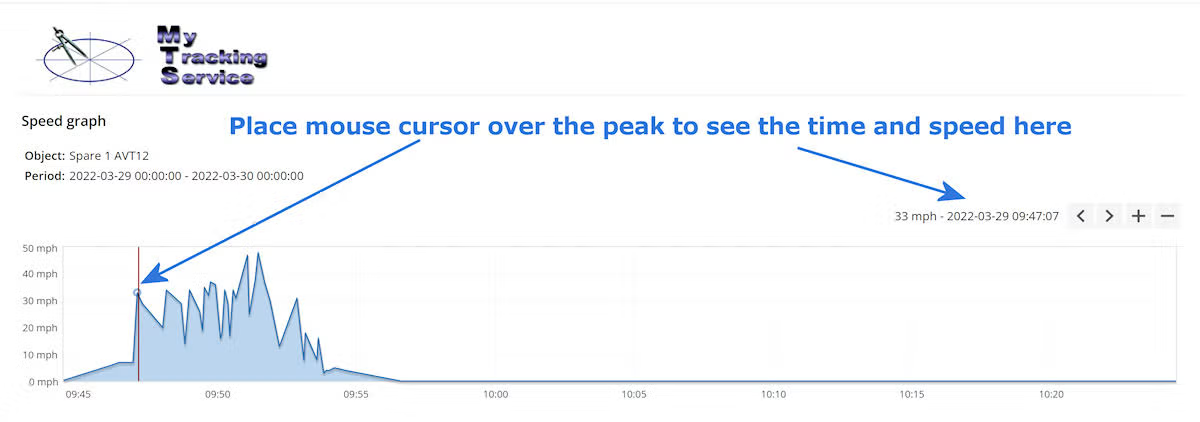
Below is the result of that report and it will show the whole day and so you may need to zoom in with + and - buttons and slide along the time line with the < and > keys. To see details of the peaks just place you mouse over pointer over them.
We suggest you now save this first report and then start another the same but you can now experiment with the data field options shown and the timing of the reports to see what else you can do. having saved a report, you will see it is now shown on the list and by clicking on the gears (red 4) will generate it again. Clicking on the pencil will let you edit it and the bin will delete it. You can see the report again in the 'generated' section of reports (see red 5 above (which has nothing to do with Star Wars)) and here clicking on the folder simple will let you review it.
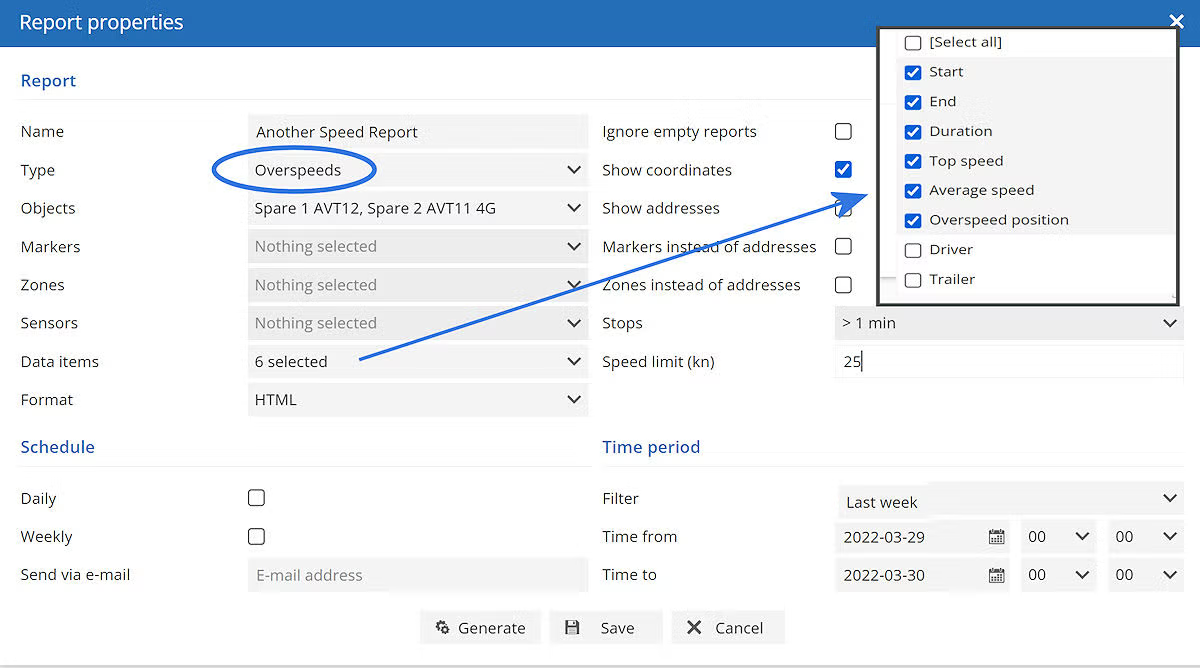
Now lets create another speed report, this time we will give it a different name and select Over speed from the 'Type' drop down menu. Nest select some or all of the objects you want the report on. In Data items select what you think you will want included in the report, selected the speed limit in this case 25 knots and lastly for Time Period select last week (assuming you have data for last week and are not a new user). Now generate the report.
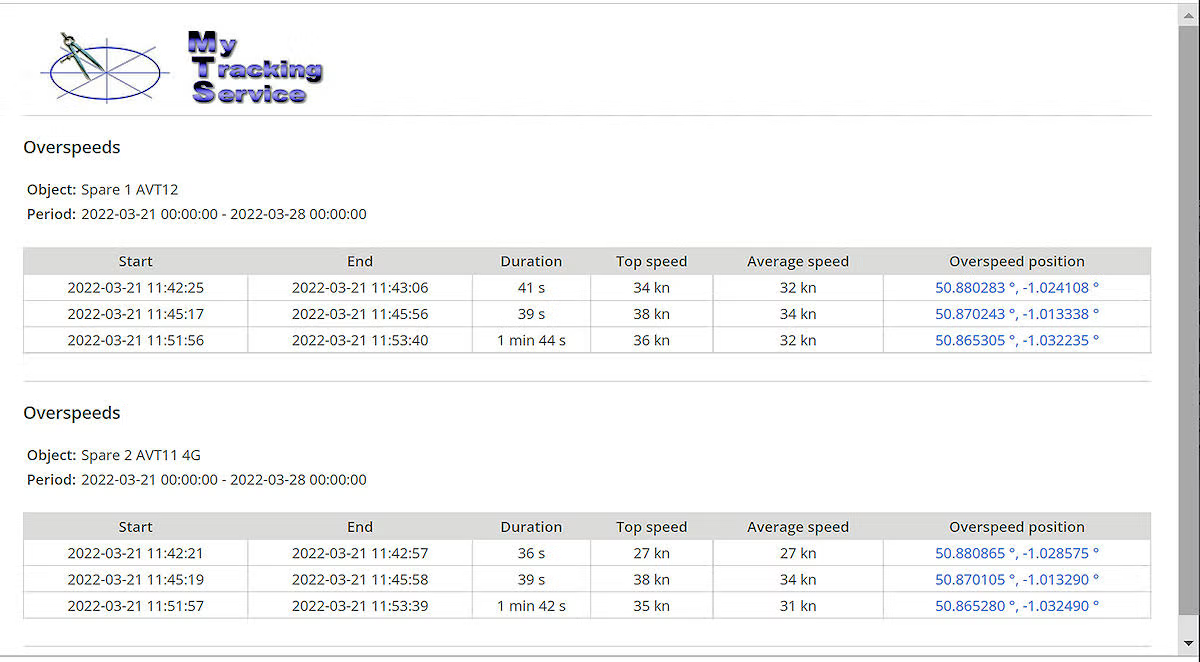
In the case above this is the report you get in the first case with AVT12 you can see it was only used on the one day and on 3 occasions broke the speed limit of 25 knots. you can also see how long for and where. Clicking on those coordinates will show you the location on the map.
Speed Warnings
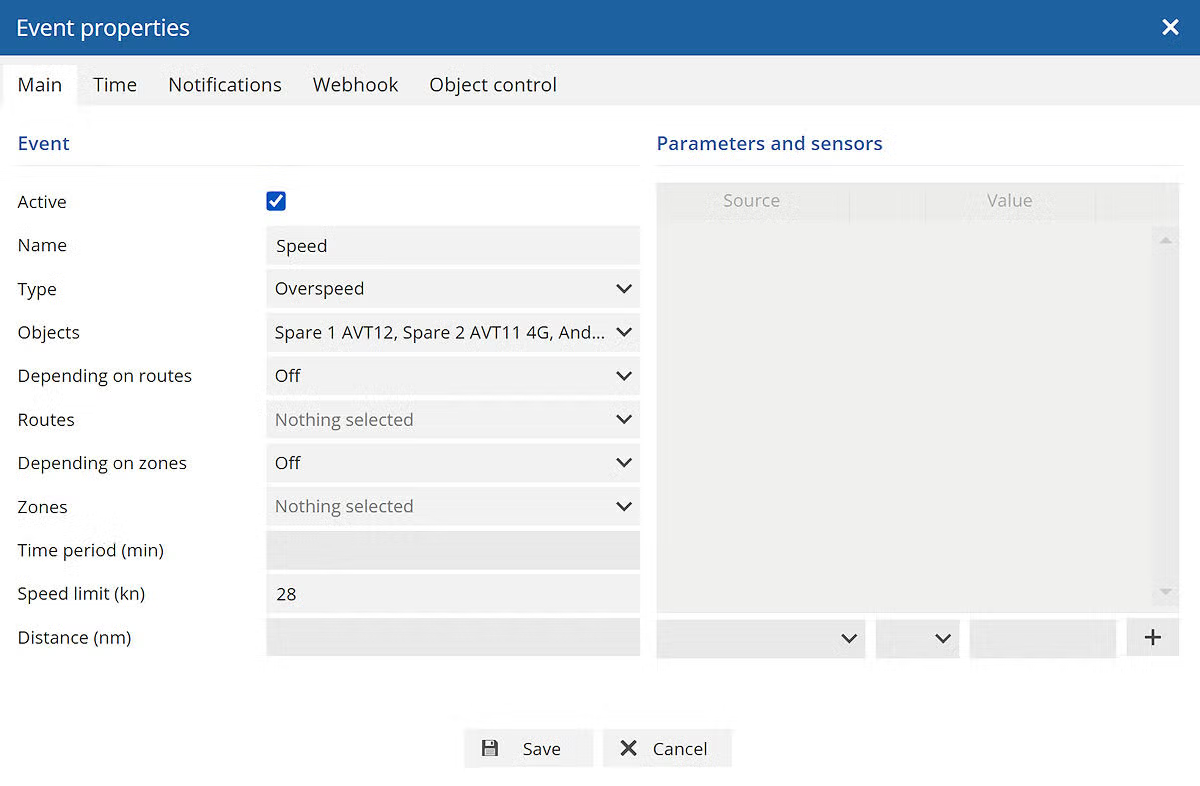
So far we have been looking at speeding after the event, it is also possible to use the system to warn you just after it has happened and to select a selection of reactions. to do this go to settings (top left next to the 'i' for help tab and looks like a small graphics Equaliser) and select 'Events'. Ignore any events already in there and click on the Plus (+) sign to create a new one. As you can see below there are a lot of option some of which will only work depending on what other option you select.
The first one 'Active' lets you switch saved events on and off, next to this is a box to add a name for the event. The 'Type' box is again a drop down, so please select 'Over speed' and in 'Objects' select the objects you want it to apply to. Now click on Notifications and go to the screen below this.
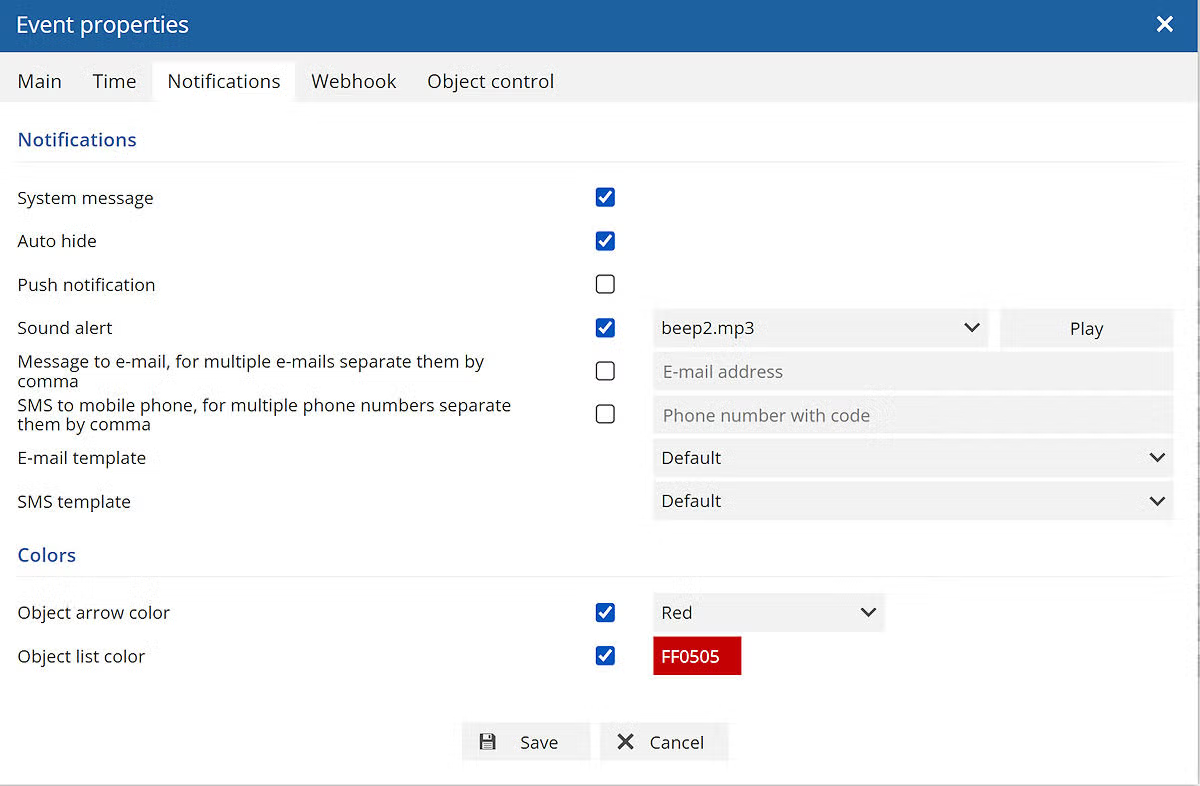
When you have clicked on 'Notifications' you will be presented with a blank screen similar to the one below, ticking the 'System message' box will cause a message to appear on the program screen telling you who and when the events was triggered. Now this can be disconcerting and fill the screen with messages and so we suggest you also select 'Auto hide' to get ride of the message after a few seconds. If you want the event make a noise select a suitable sound file and if you want to also send an email (and have set up a server to do this), you can also do this here. This is sufficient for now, but DON'T FORGET TO SAVE IT!
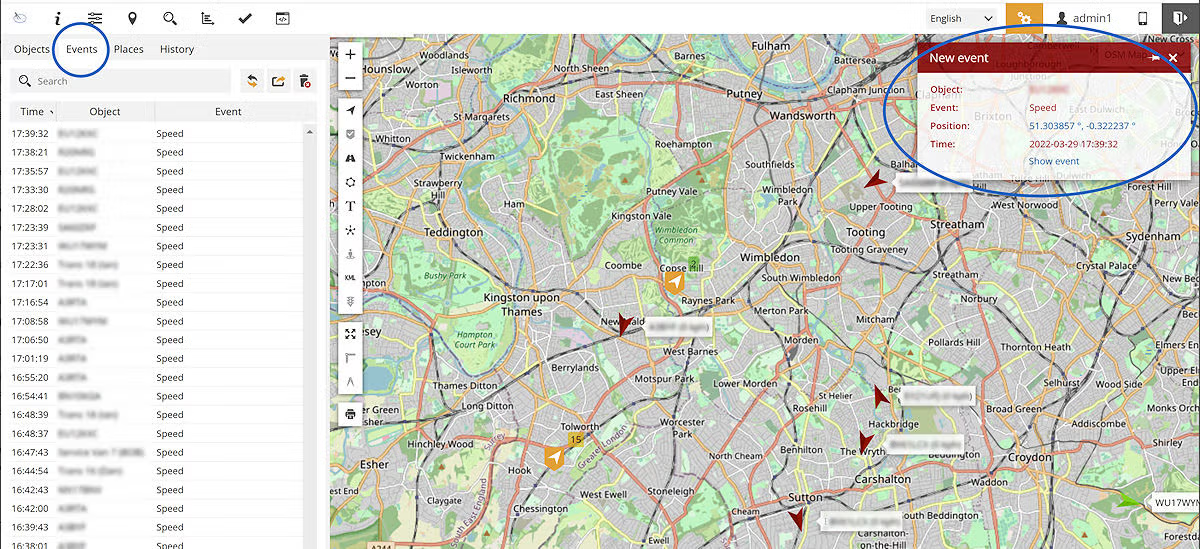
This should give you a good start both on Reports and Events and although it has been speed we are talking about there are other options you can experiment with. Lastly be aware that Events that have been triggered by the above method will exist for sometime under the Event Tag (between Objects and History on the main PC screen outlined below in blue) Click there to see if any one has been speeding recently, the example of this screen shows one of our fleet operators where we set the event to trigger at 35 mph and it also shows the warning message displaying.
Notes
This should give you a good start both on Reports and Events and although it has been speed we are talking about there are other options you can experiment with.
In the examples here we have used MPH and Knots but the report will handle both along with Kilometres and will default to whatever you have set the software to in the 'User Interface'
Copyright © 2011-23 · All Rights Reserved·
My Tracking Service
Boat Track